
How to remove ums in iMovie
iMovie has no feature that finds ums for you, so you cut each one out yourself on the timeline. It is quick for a handful and slow for a long video. Here is how to do it, and a way to skip the slog.
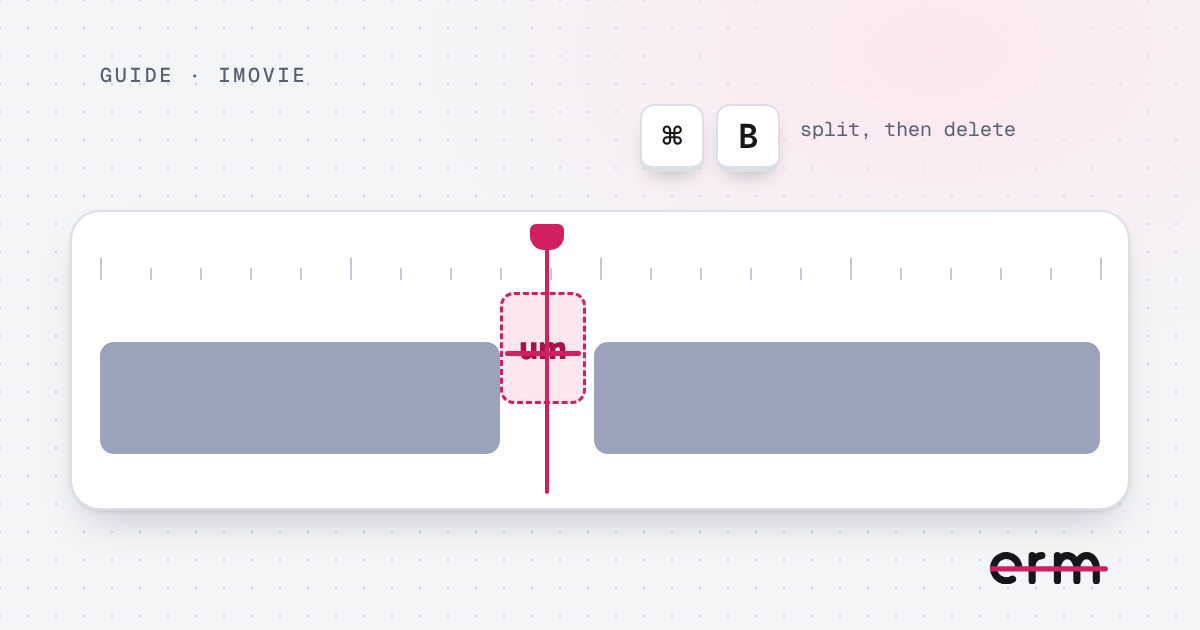
Remove an um by hand in iMovie
- Drag your video onto the timeline and play it.
- Move the playhead (the white line) to just before the um.
- Choose Clip, then Split Clip (or press Command-B).
- Move the playhead to just after the um and split again.
- Click the small piece between the two splits and press Delete. The gap closes up.
- Play across the join. If it sounds clipped, undo and try a split a touch earlier or later.
Zoom in on the timeline if you need to place the cut precisely. Repeat for each um, then share the video as usual.
The slow part
Each um takes a handful of steps, and a ten-minute talk can have dozens. Joins that look neat on the timeline can still sound abrupt, so you end up listening to each one.
A faster way: clean it in erm first
- Drop your video into erm before you open iMovie.
- Every um, erm, uh and long pause is marked. Review them and save the edit as a .mov, .mp4 or .m4v.
- Open the saved video in iMovie and carry on: trim, add titles, add music.
This app does one job, finding and cutting ums and long pauses, so it fits in front of the editor you already use. It runs on your Mac and uploads nothing.
The same idea works with Final Cut Pro, and there is a general guide for a Mac.
Questions
Can iMovie remove ums automatically?
No. iMovie has no tool that finds and removes ums, so you cut each one out by hand on the timeline.
Can I use erm and iMovie together?
Yes. Clean the video in erm, save it, then open the saved file in iMovie to finish editing.
Does erm work with iMovie video files?
erm opens .mov, .mp4 and .m4v files. If you export from iMovie as a file in one of those formats, you can drop it into erm.
erm is coming soon to the Mac App Store. First 3 videos free, then $29.99 once or $19.99 a year.